
USB Tethering on iPhone — A Complete Guide
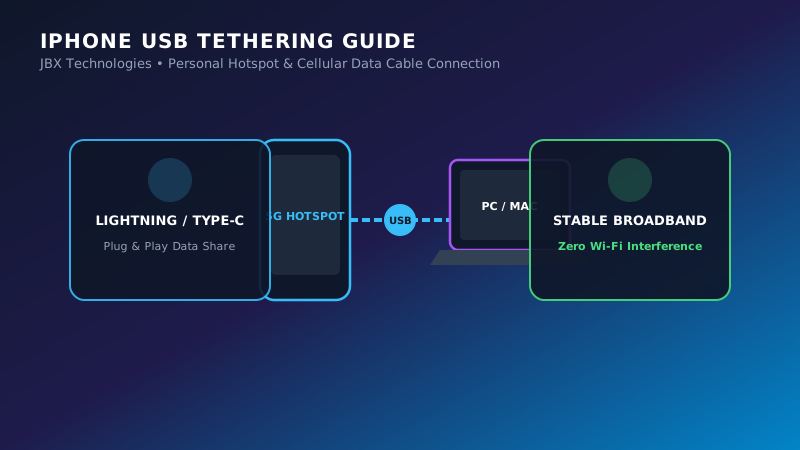
Table of Contents
In today's digital age, staying connected to the internet is essential — especially when you're on the move. Whether you're working remotely, attending online meetings, or simply browsing, a stable connection is a must. If you're facing Wi-Fi issues or simply need a quick internet fix for your computer, USB tethering using your iPhone is a fast, secure, and reliable solution.
In this guide, we'll walk you through everything you need to know to use USB tethering with your iPhone — for both Windows PCs and Mac computers.
What You'll Need
- An iPhone with an active mobile data plan
- A USB-to-Lightning cable
- The latest version of iTunes installed (only for Windows users)
Step 1: Turn on Personal Hotspot
- Go to Settings → Mobile Data (or Cellular)
- Tap on Personal Hotspot
- Toggle Allow Others to Join to On
- If prompted, enable Wi-Fi and Bluetooth — or use USB only, depending on your preference
Step 2: Connect iPhone to Your Computer
Using the Lightning USB cable:
- Plug your iPhone into your Windows PC or Mac
- On the iPhone, tap Trust This Computer if prompted
Step 3: Configure Settings on Your Computer
For Windows Users
- Ensure iTunes is installed (necessary for required Apple drivers)
- Go to Control Panel → Network and Sharing Center
- Click Change Adapter Settings
- A new connection should appear named Apple Mobile Device Ethernet
- Your PC should now use your iPhone's mobile internet
Alternatively, go to Settings → Network & Internet → Ethernet and locate the iPhone network.
For Mac Users
On Mac, USB tethering usually works automatically — once the iPhone is plugged in and trusted, the system recognizes it as an iPhone USB network adapter under System Preferences → Network.
Key Notes
- USB tethering offers a more stable and faster connection than Wi-Fi or Bluetooth
- Some carriers may charge extra for using tethering — check with your service provider
- Your iPhone will charge while connected, reducing battery drain
- If tethering doesn't work, try restarting your iPhone, reconnecting the cable, or reinstalling iTunes (on Windows)
Final Thoughts
USB tethering is an efficient way to turn your iPhone into a mobile internet source for your laptop or desktop — especially when Wi-Fi is unavailable. It's easy to set up, reliable, and secure. Whether you're uploading a file, attending a Zoom meeting, or simply browsing, this feature ensures you stay connected when it matters most.